Create approval workflows for types: Additional Work Hours, Annual leave, Maternity leave, Private work without pay, Sick leave, Late for work, Go home early, Go out, Go on business, type of leave
Add New Approval Setting
To add a new approval to your organization:
- Step 1. Go to Settings menu under Timesheets & Leave module from the left sidebar.
- Step 2. Select Approval Process menu -> Click on the New button.
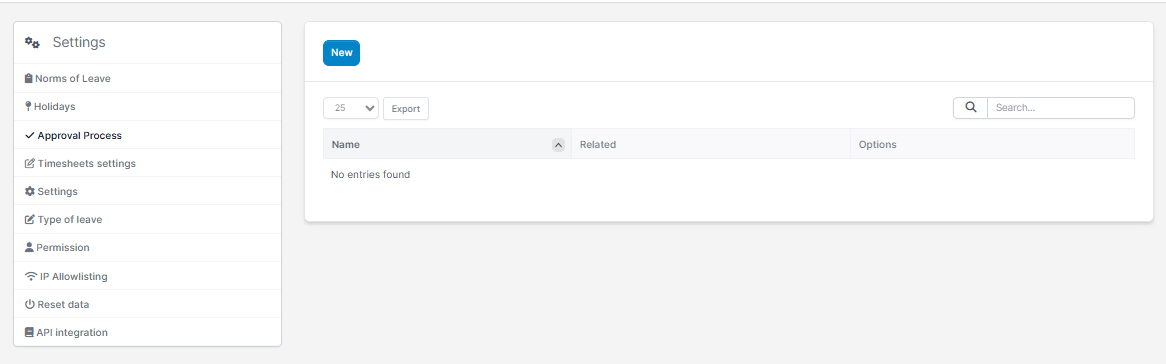
- Step 3. In the Add approval process page, fill the following details:
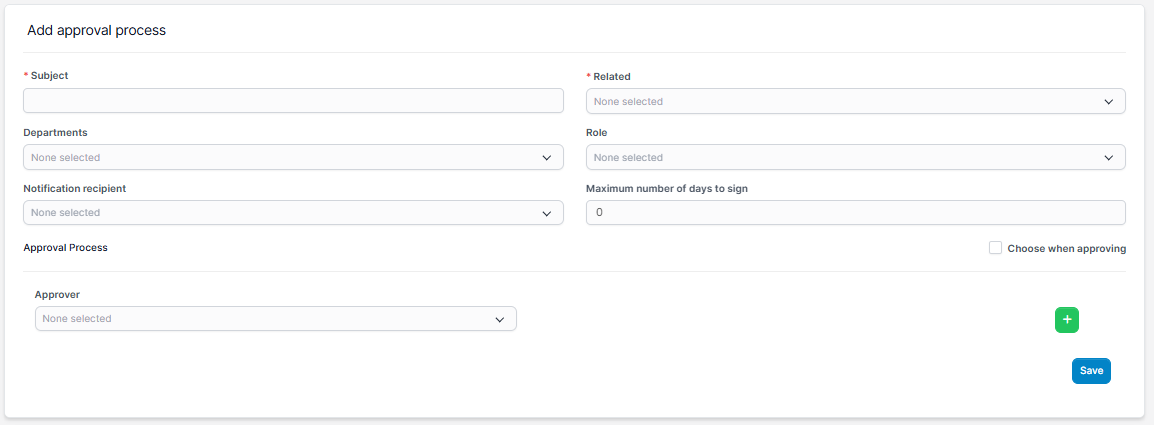
- Enter the Subject.
- Select Related: Additional Work Hours, Annual leave, Maternity leave, Private work without pay, Sick leave, Late for work, Go home early, Go out, Go on business, type of leave.
- Select the Department and Role (optional). The approval workflow will only apply to employees who belong to both the selected Role and Department in the Approval Setting. For example, if the Approval Setting applies to the Education department and the Employee role, then the workflow will only apply to staff members who are part of both the Education department and the Employee role.
- Select the Notification recipient
- Enter the Maximum number of days to sign
- Select approval Process: Choose when approving or Approver
Choose when approving: Transaction creator can chooses an approver after submitting a successful transaction - Select Approver: Specific personnel or Direct manager or Head of the department.
- Direct manager: who will approve the corresponding transactions created by the employee that this person is managing. Go to HR Records module-> HR Records menu -> Edit staff -> select "Direct manager"
- Head of the department: the person who will approve the corresponding transactions created by the staff of the department managed by this person. Go to HR Records module-> Org chart menu -> Edit unit -> select "Unit manager".
Direct manager, Department manager are only displayed when HR Record module is active. - Click to add another approver to the process
- Click to remove a approver from the process
- Step 4. Click Save button
If the transaction creator's department does not have a department head, or the transaction creator does not have a direct manager, after submitting the approval request, the transaction creator will receive a notification that no approver was found.
Approval Case:
- No approval process
Do not create an approval process: request is automatically approved - Approval process has 1 person
Employees in the process will receive approval requests via email and web. -> Select Approve or Deny - Approval process with 2 or more people
Once the request is successfully created, the approval request notification is sent to the first employee (Tu Do) in the process via email and web.
In case both people Approve
The first employee selects Approve -> the second employee (Bao Thanh) in the process will receive a notification requesting approval via email and web. ->The second employee also chose to approve
==> status of request changed to Approved
In case the first person chooses Deny
The first employee chooses to Deny=> the second employee in the process will not receive an email and a web browser request message. => status of request changed to Rejected
In case the first person chooses Approve but the second person chooses Deny
The first employee selects Approve -> the second employee (Bao Thanh) in the process will receive a notification requesting approval via email and web. -> The second employee chooses Deny
=> status of request changed to Rejected - Choose when approving
request creators can choose their own approvers.
The person selected for approval will receive a notification requesting approval via web and email.5. If you are integrating HR Record module: there are 2 more options: Head of the department and Direct manager
Head of the department: The approver is the department head of the requestor
Direct manager: The approver is the requestor's direct manager