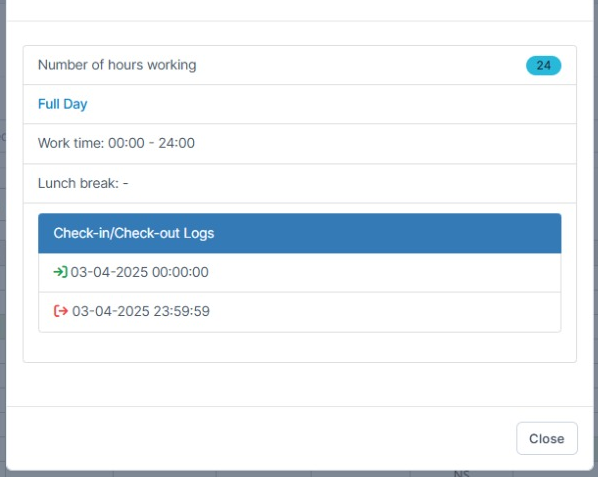
You can now create a Shift Category that allows employees to check-in and work up to 24 hours per day.
Step 1. Go to Shift Categories menu under the Time Attendance module -> click Add
Step 2. Fill in the shift category details as folllows:
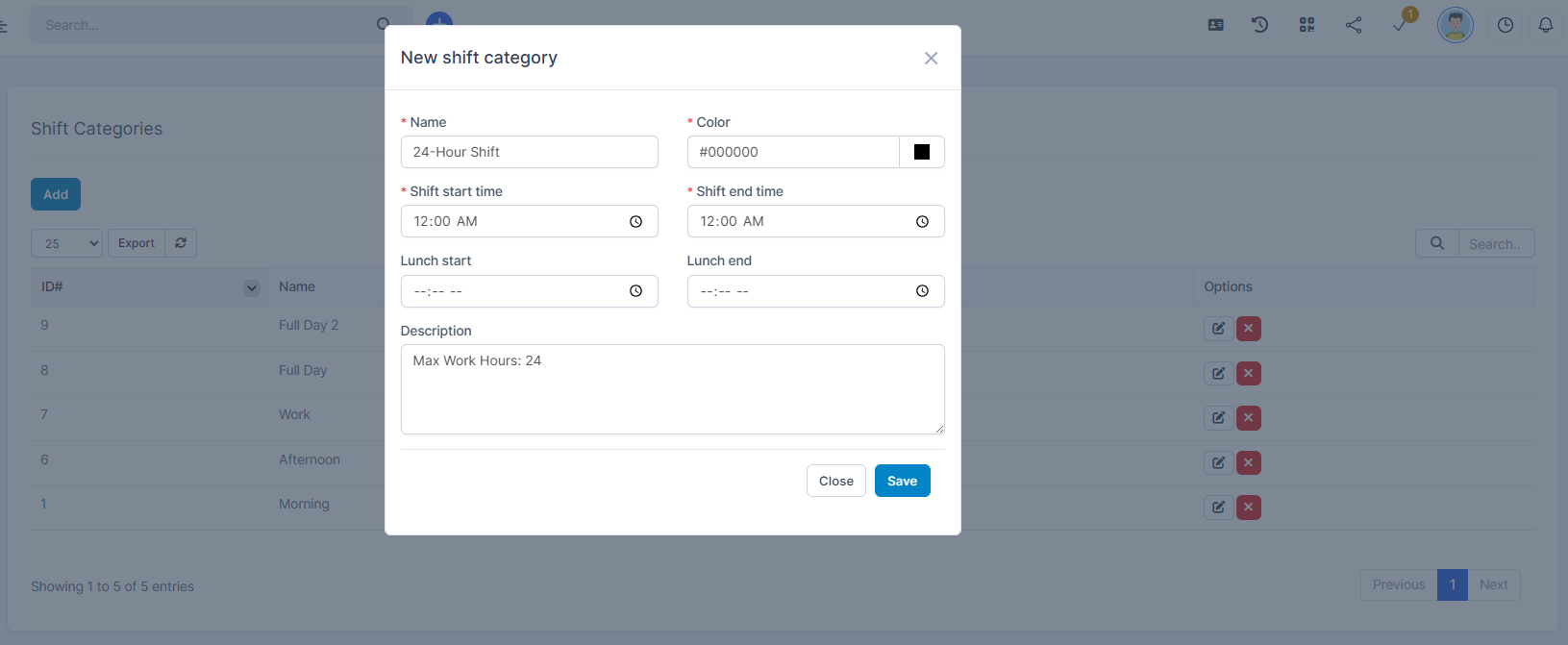
Name: The name of the shift category (e.g., Morning Shift, Night Shift, 24-Hour Shift)
Color: A color code used to visually represent this shift on Work shift table.
Shift start time: The time the shift begins. For a full-day shift, this could be set to 12:00 AM.
Shift end time: The time the shift ends. For a 24-hour shift, this should also be set to 12:00 AM
Lunch start: The time when the lunch break begins. This will be excluded from working hours calculation.
Lunch end: The time when the lunch break ends. The system will resume tracking working hours after this time.
Description: Additional notes or context about this shift category. For example: "24-hour on-call support shift".
Note: Setting both start and end time as 12:00 AM defines a full-day shift (00:00–24:00).
Step 3. Create a shift using the category
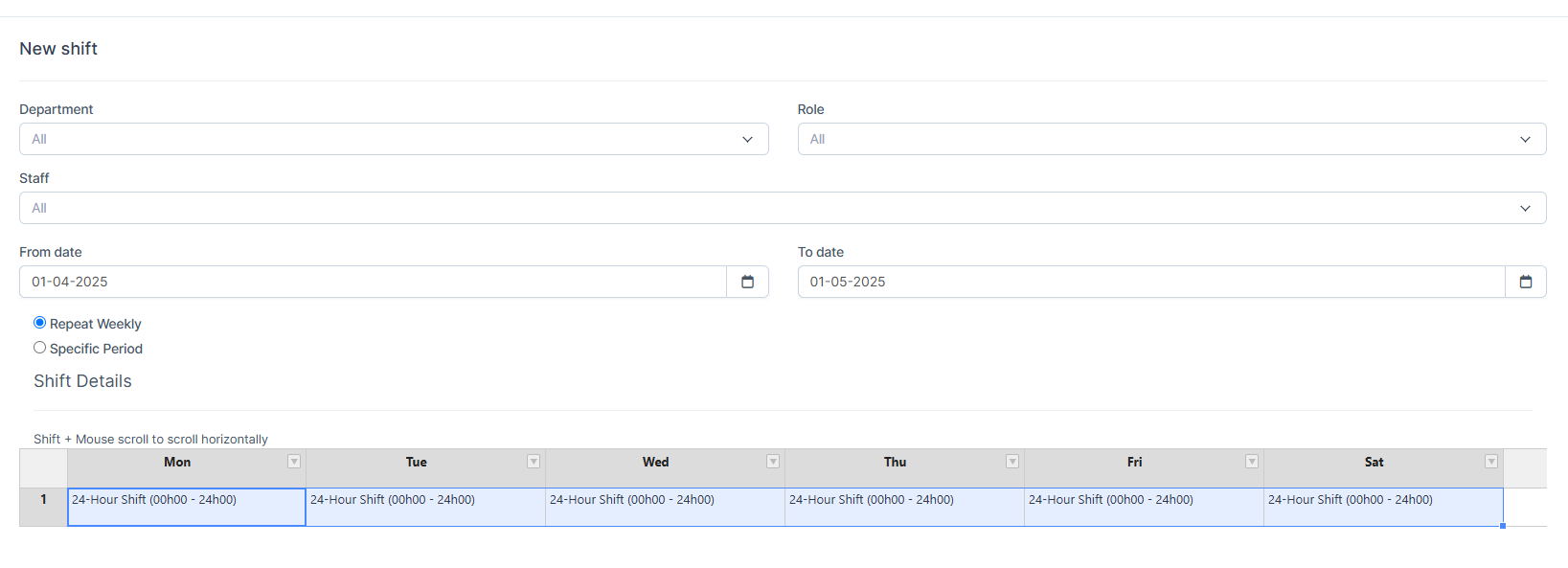
Go to Shift menu -> click New -> select the newly created 24-Hour Shift category. select From Date- To Date and assign it to employees
Step 4. Perform Check-in and Check-out
Go to Attendance menu -> click Check-in / Check-out
Check-in time: 00:00:00
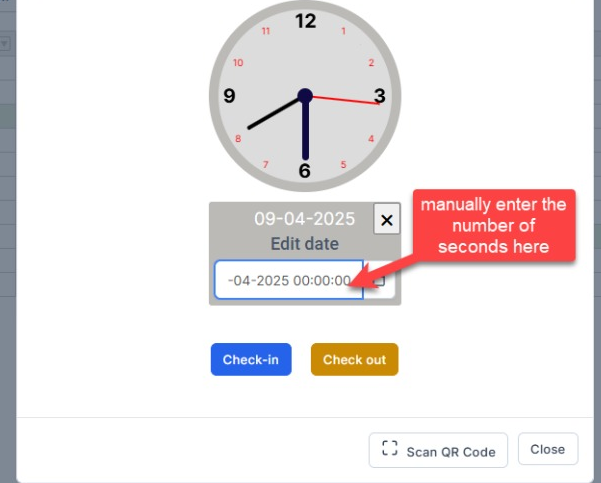
Check-out time: 23:59:59
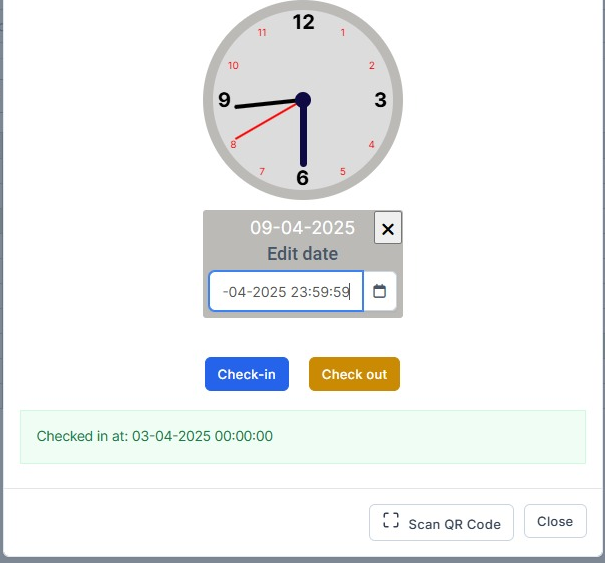
This covers the full 24-hour period within the same calendar day.
Result: