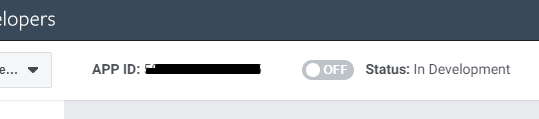
- Login to your Facebook account and navigate to
- If you were already registered for Facebook developer account, you can skip to B
- If you are not registered on Facebook developer account, then you need to follow these steps:
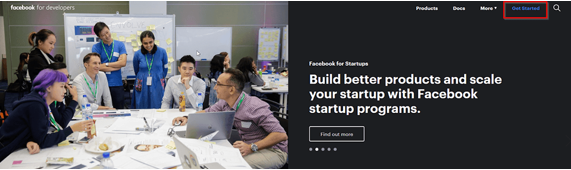
- 1. Click on Get Started button from top right corner.
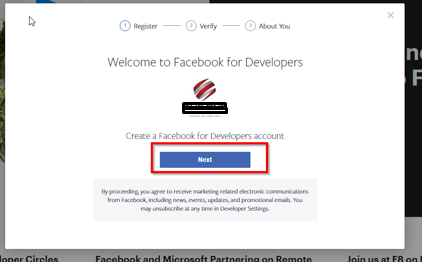
- 2. Click on next button from the popup
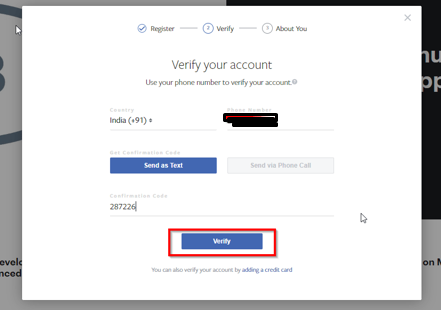
- 3. Enter your phone number and verify your account using text message or phone call.
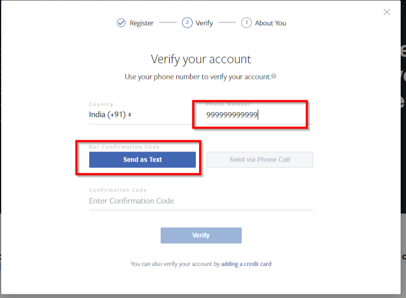
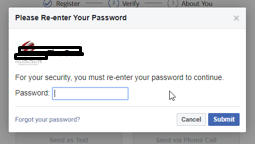
- 4. It may be needed to Re Verify your account by Facebook.
- 5. Then enter verification code you got and click on the Verify button.
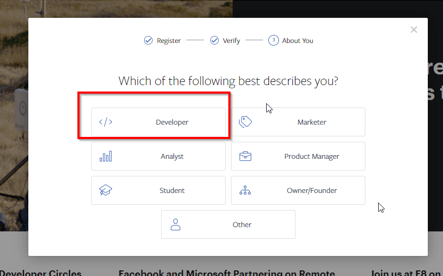
- 6. On the next screen, after verifying your account, 3rd step is to tell about you. Select Developer option here.
C) Create & configure a Facebook Application - top
C1)
- In the following videocast, we will show you how to configure your module so it captures your Leads form from your pages, through your app.
Please make sure that you follow every single step by double checking your actions.
- Our module can work with
Custom Fields
- of Perfex as well. Feel free to add them in your Leads form, but you can skip this part if you dont have any.
- During the initial setup, as seen in the videocast, we left the app in Development mode so we can verify that module communicates fine with our installation.
C2)
- Now, its time to set your app to production mode.
- Before you do so, you will need a Facebook Application with the following services added:
1. Facebook Login
2. Webhooks
- and the following permissions approved:
1. manage_pages
2. leads_retrieval
- We cannot guarantee your approval of those permissions - neither if your niche-specific-results will be positive - nor the workaround days of the approval request by Facebook review team. However, we can help you with related advised, if your app is rejected.
- Make sure that you open up a support ticket and our support guys will get back to you asap.
- The procedure of permissions' request is described in the followin guide. If something is unclear to you, we do also include a visualized how-to, through a videocast for the same procedure at the end of this how-to guide.
Permission requests
- In section
App Review > Permissions and Features
- menu, select the 2 required for your Leads communication:
manage_pages
- and
leads_retrieval
- , through Add Permissions and Features to Your Request option.
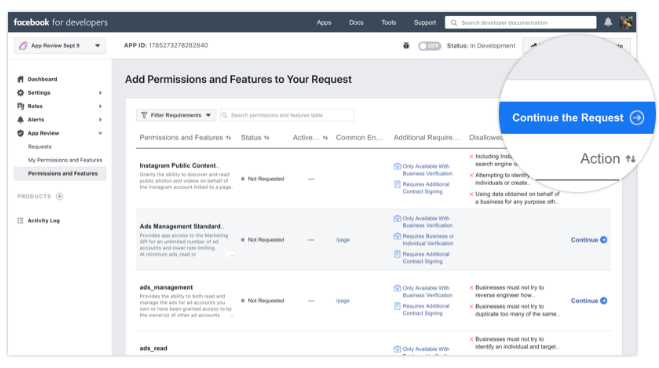
- Next click Continue next to any of the selected permissions and you will be taken to section
App Review > Current Request
- . You need to fill details for each of the requested permissions by clicking on the arrow in screenshot below.
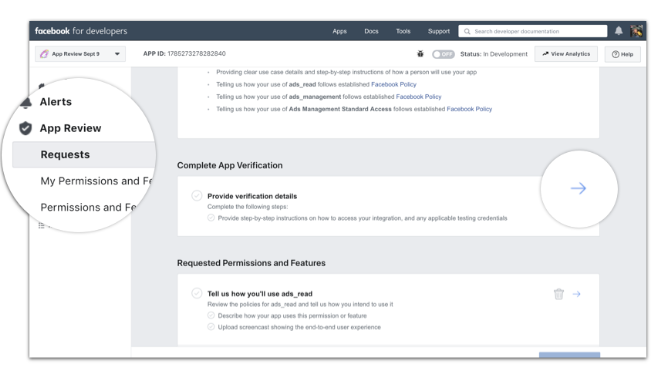
- Once all marks are blue, the button
Submit for Review
- at the bottom of page will become active and you will be able to submit the app for review.
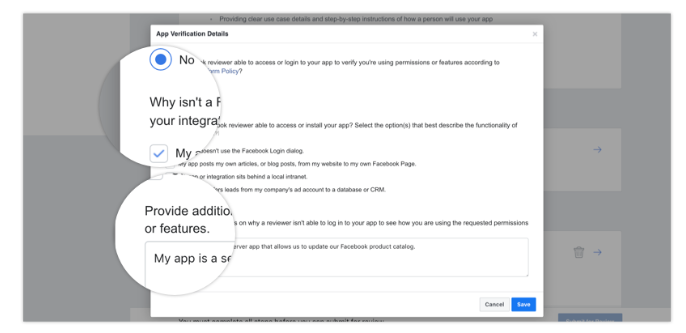
Describing Data Usage in permission requests
- Now you describe how your app will use the data that each permission will allow your app to access. In the Requested Permissions and Features click the arrow icon of the first permission.
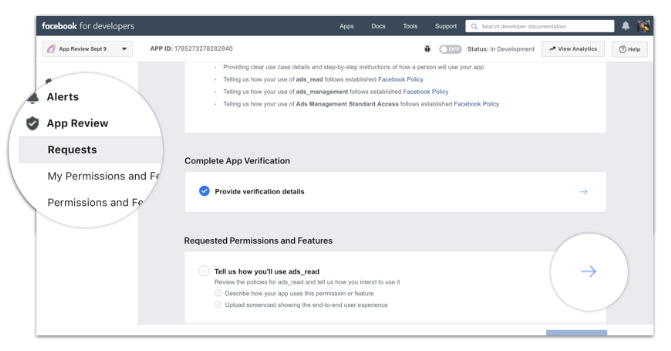
- Provide a general description of what your app will do, then explain how the
manage_pages
- permission will provide value to your app users.
- A great example that can be used for our module is the following one (feel free to copy/paste it):
"Our app allows lead communication between our page and our CRM. Our CRM needs access through manage_pages permission in order to be able to parse the data from a Lead form of our Facebook Page, to our CRM's database"
- Next, you need to upload a screencast of your app and how it is using the permission. You upload a similar screencast to this, showing up clearly the way module will use the permission.
Now that you are done with the permissions aswell, you need to wait until review is completed.
- Here's a videocast of the permissions procedure that is described above (turn on your audio please):
LAST STEP - AFTER REVIEW:
- Once permissions are approved, you need to set your app to
LIVE
- instead of
DEVELOPMENT
- mode using the main switch on the top area of its settings: