Users can access the modules based on their permission.
Admin: has unrestricted access to all the modules. You as an admin, can assign permission for role or specific employees.
Add Permission
- Step 1. Go to Settings menu under Inventory module from the left sidebar.
- Step 2. Select Permissions menu -> Click on the Add button.
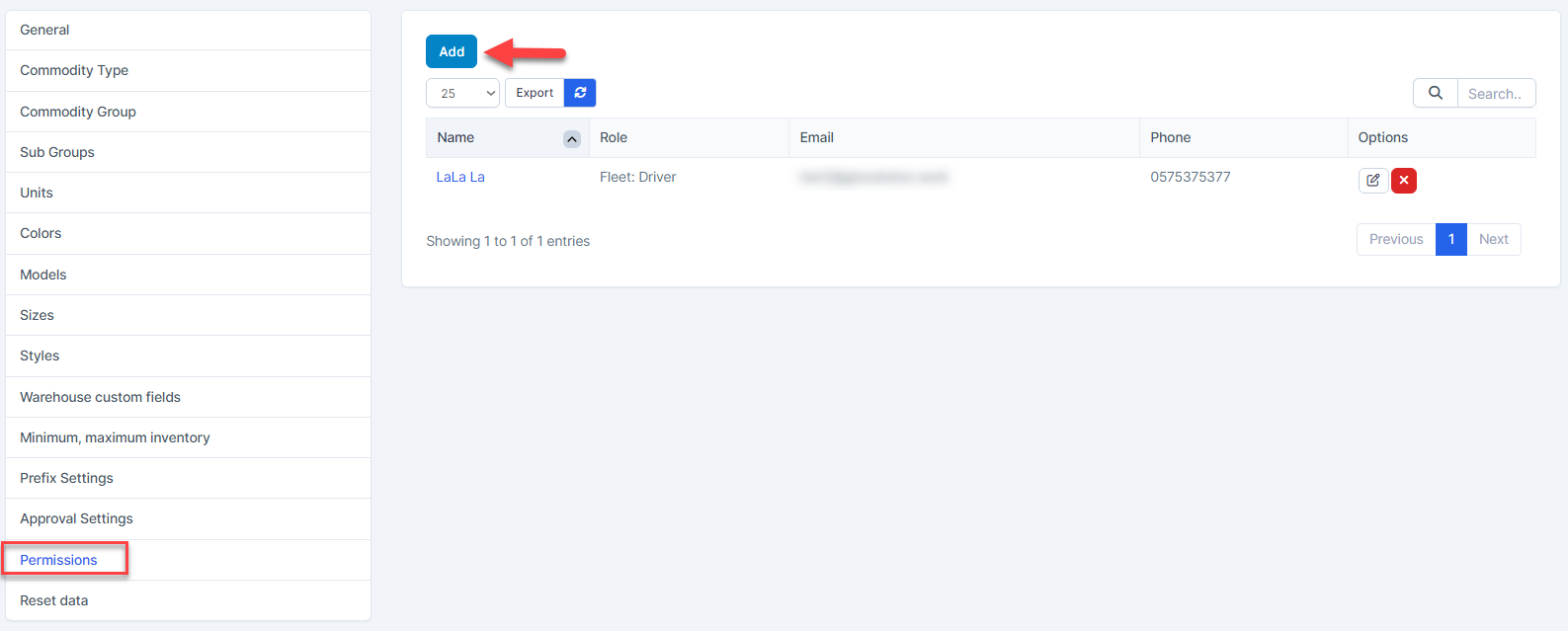
- Step 3. In the Add Permissions page, fill the following details:
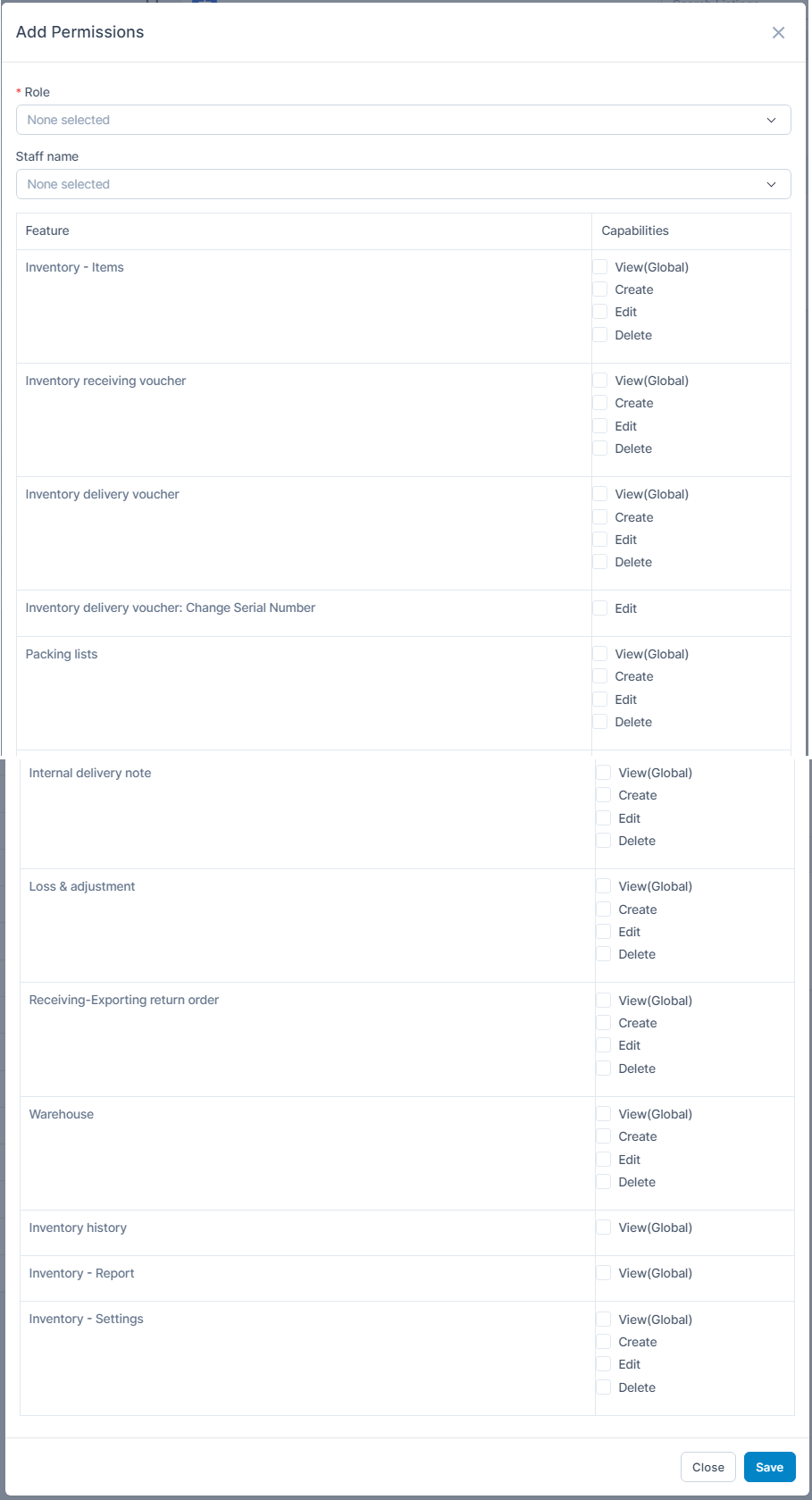
- Role: select a role to apply the same permission to all employees in that role
- Staff name: select a specific employee if the permission is individual
- View ( Global): Allows viewing all records across branches or warehouses.
- Create: Allows creating new records.
- Edit: Allows modifying existing records.
- Delete: Allows removing records.
- Inventory Delivery Voucher-Change Serial Number: If voucher is not yet approved, employee with this permission can change the serial number for delivery.
- Step 4. Click Save button
Edit Permission
To edit the details of an existing permission:
- Step 1. Go to Settings menu under Inventory module from the left sidebar
- Step 2. Select Permissions menu -> Select permission need to be edited and click Edit
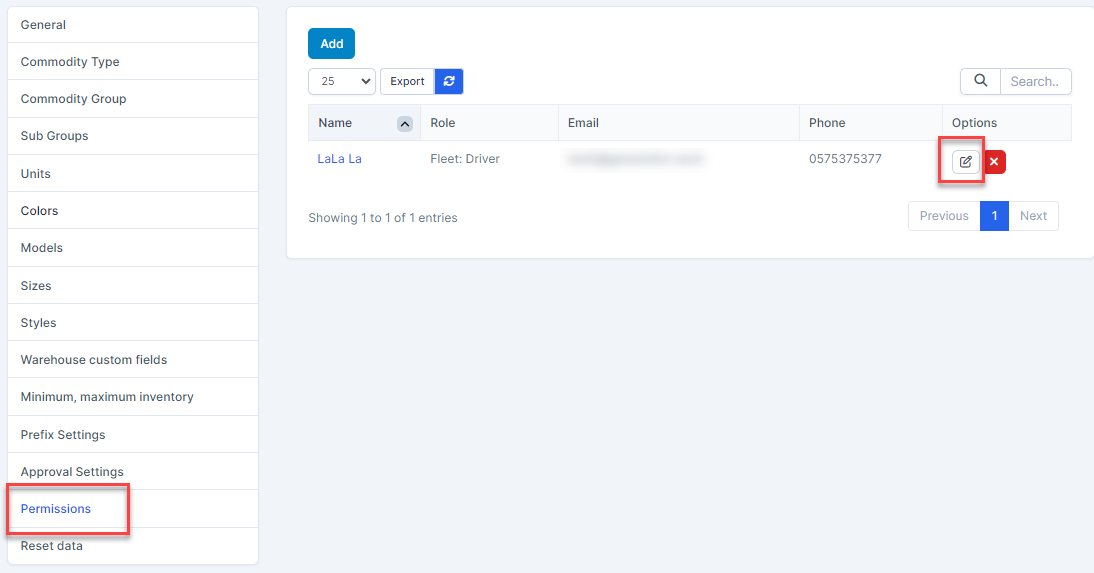
- Step 3. Make the necessary changes and click Save button
Delete permission - Step 1. Go to Settings menu under Inventory module from the left sidebar
- Step 2. Select Permissions menu -> Select the permission need to be deleted and click Delete
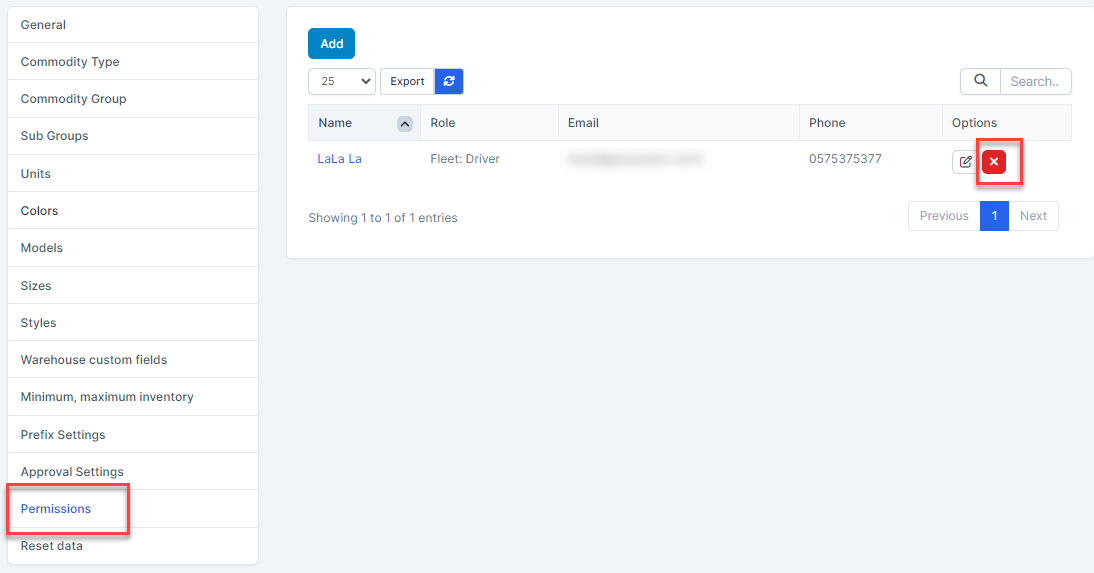
- Step 3. Confirm your selection in the following pop-up. The approval will be deleted.
