Used to map the cost of maintenance.
Manual Mapping
If the maintenance mapping setup is disabled, the cost of maintenance is not automatically mapped. Manual mapping is required.

- Step 1. Go to Maintenances menu under the Fixed Equipment module -> create a maintenance, enter the start date, cost.
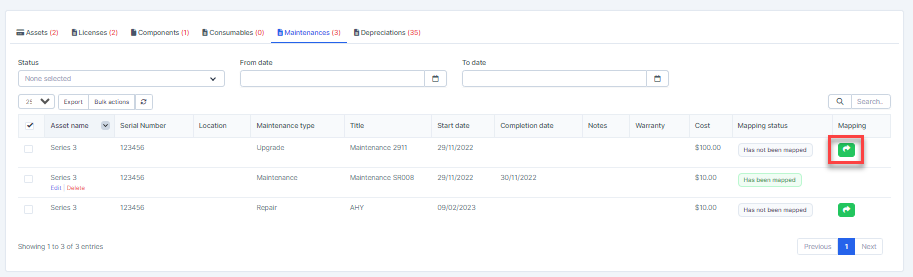
- Step 2. Go to Transactions menu under the Accounting module -> Fixed equipment -> Maintenances-> click
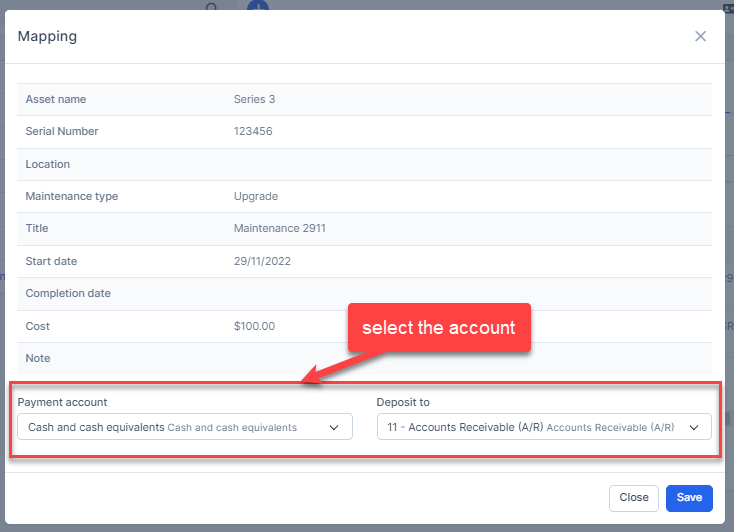
Step 3. Select the account and click Save
Result: data is mapped to the report by start date of maintenance
Automatic mapping for maintenances
- Step 1. Go to Settings menu under the Accounting module in the left sidebar -> Select the Mapping setup menu -> Select the Fixed equipment tab -> enable the maintenance mapping setup and select the payment account, deposit to -> then click on the Save button.

- Step 2. Go to Maintenances menu under the Fixed Equipment module -> create a maintenance, enter the start date, cost.
- Step 3. Go to Transactions menu under the Accounting module -> Fixed equipment -> Maintenances, cost of this maintenance is mapped automatically.
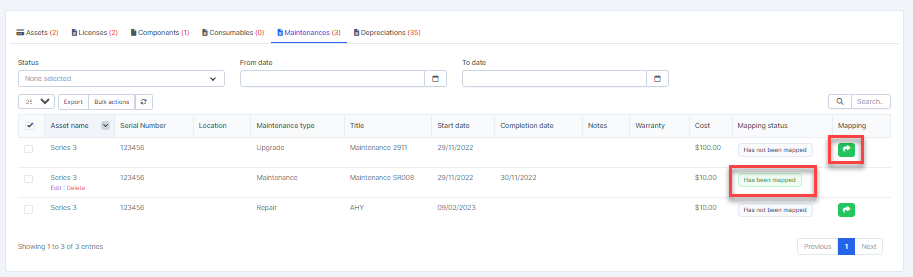
- Result: data is mapped to the report by start date of maintenance
Mass mapping
- Step 1. Enable the maintenance mapping setup and select the payment account and deposit to then click on the Save button.
- Step 2. Go to Transactions menu under the Accounting module ->Fixed equipment -> Maintenances-> Select the maintenance which mapping status is Has not been mapped -> click on the Bulk actions -> select the Mass mapping -> click on the Confirm button

Step 3. Confirm your selection in the following pop-up. The value of maintenance will be mapped.

Edit mapping
- Step1. Go to Transactions menu under the Accounting module -> Fixed equipment -> Maintenances -> Click on the Edit
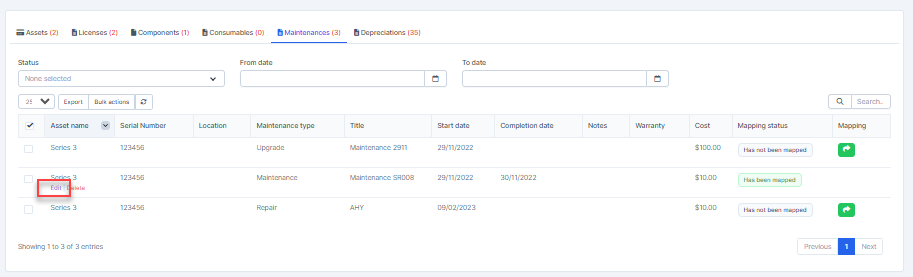
- Step 2. Change the account and click on the Save ==> the amount of the account will be changed.
Delete mapping
Deleting the mapping will change the account's amount
- Step1. Go to Transactions menu under the Accounting module -> Fixed equipment -> Maintenances -> Click on the Delete
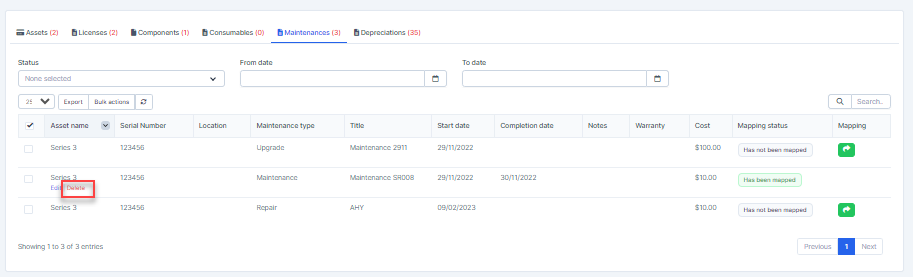
Step 2. Confirm your selection in the following pop-up. The mapping of this maintenance will be deleted.

Mass delete mapping
Deleting the mapping will change the account's amount
- Step 1. Go to Transactions menu under the Accounting module -> Fixed equipment -> Maintenances-> Select the maintenance which mapping status is Has been mapped -> click on the Bulk actions -> select the Mass delete mapping -> click on the Confirm button
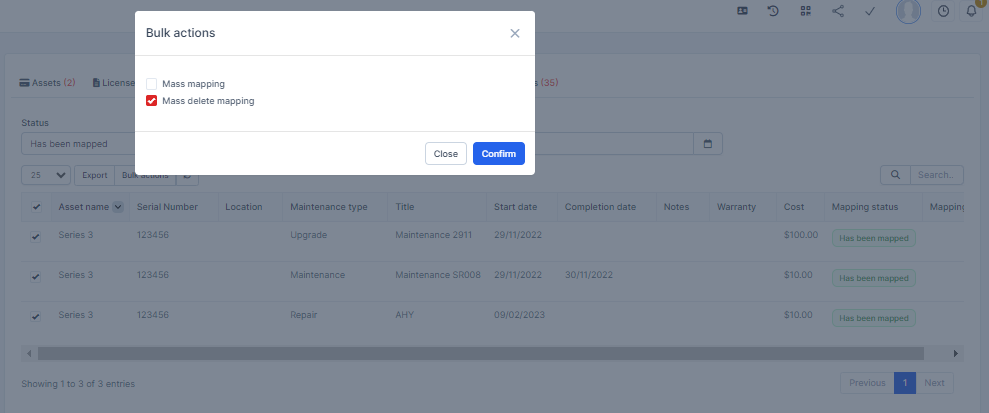
Step 2. Confirm your selection in the following pop-up. The mapping of maintenance will be deleted.
