Use shift category to create shift for employees.
Create Shift Category
- Step 1. Go to Shift Categories menu under Timesheets & Leave module from the left sidebar
- Step 2. Click on the Add button

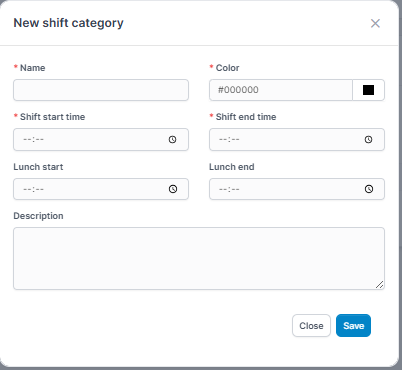
- Step 3. In the New shift category popup, fill in the following details:
-
Name: The name of the shift category (e.g., Morning Shift, Night Shift, 24-Hour Shift)
Color: A color code used to visually represent this shift on Work shift table.
Shift start time: The time the shift begins. For a full-day shift, this could be set to 12:00 AM.
Shift end time: The time the shift ends. For a 24-hour shift, this should also be set to 12:00 AM
Lunch start: The time when the lunch break begins. This will be excluded from working hours calculation.
Lunch end: The time when the lunch break ends. The system will resume tracking working hours after this time.
Description: Additional notes or context about this shift category. For example: "24-hour on-call support shift".
- Step 4. Click on the Save button.
Edit Shift Category
To edit the details of an existing shift category:
- Step 1. Go to Shift Categories menu under Timesheets & Leave module from the left sidebar
- Step 2. Select the shift category need to be edited and click Edit button
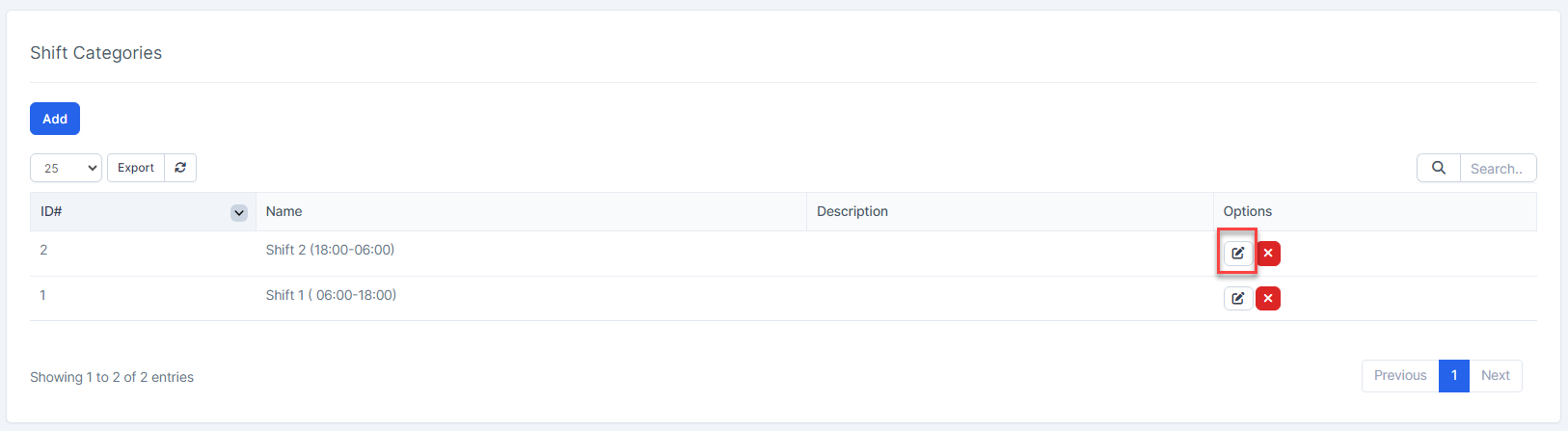
- Step 3. Make the necessary changes and click Save button
Delete Shift Category
If a shift catetory is no longer operational, you can delete it. To delete a shift category:
- Step 1. Go to Shift Categories menu under Timesheets & Leave module from the left sidebar
- Step 2. Select the shift category need to be deleted and click Delete button
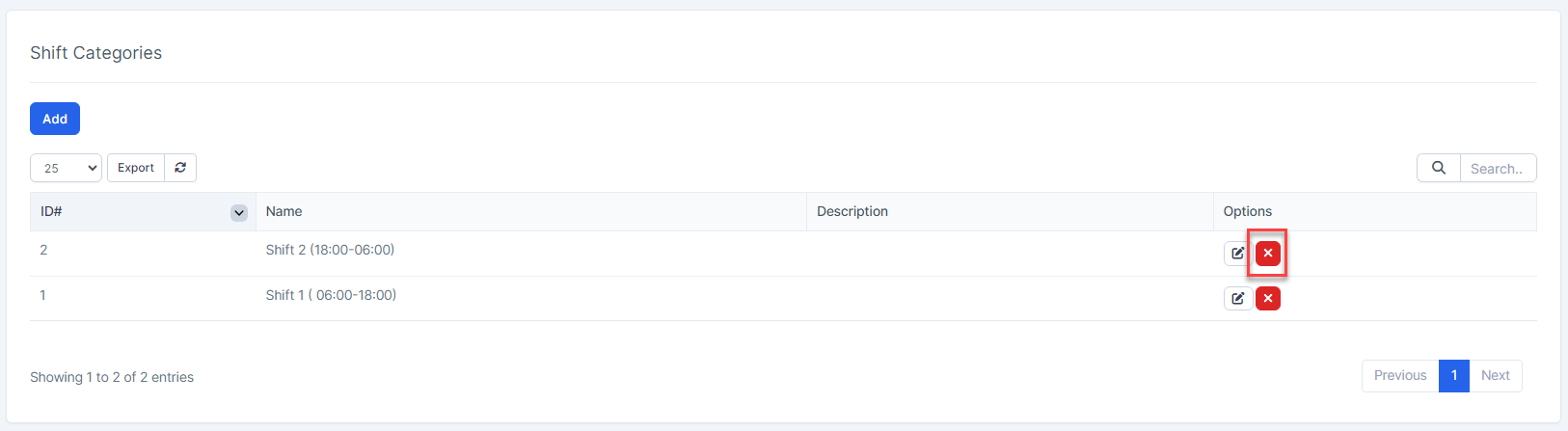
- Step 3. Confirm your selection in the following pop-up. The shift category will be deleted.
