2. S3 Bucket Configuration
1. The bucket is created in the same region as your WPSCRM account. The following are the valid WPSCRM regions –
-
- ap-south-1
- ap-southeast-1
- us-east-1
2. Add the following policy to the S3 bucket –
"Version":"2012-10-17",
"Statement":[
{
"Sid":"VisualEditor0",
"Effect":"Allow",
"Action":[
"s3:DeleteObjectTagging",
"s3:GetObjectRetention",
"s3:DeleteObjectVersion",
"s3:GetObjectVersionTagging",
"s3:PutObjectVersionTagging",
"s3:ListBucket",
"s3:DeleteObjectVersionTagging",
"s3:GetObjectLegalHold",
"s3:ReplicateObject",
"s3:GetObjectVersionTorrent",
"s3:PutObject",
"s3:GetObjectAcl",
"s3:GetObject",
"s3:PutObjectVersionAcl",
"s3:GetObjectVersionAcl",
"s3:PutObjectTagging",
"s3:GetObjectVersionForReplication",
"s3:DeleteObject",
"s3:PutObjectAcl",
"s3:ReplicateDelete",
"s3:GetObjectVersion"
]
}
]
}
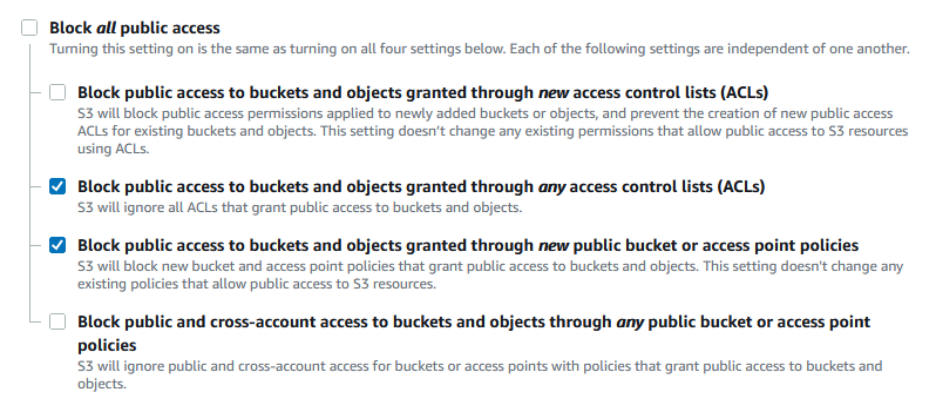
3. The bucket settings under the Permissions tab are set as follows –
4. Add the following CORS configuration to the bucket –
[
{
"AllowedHeaders": ["*"],
"AllowedMethods": ["GET","HEAD"],
"AllowedOrigins": ["https*"],
"ExposeHeaders": [],
"MaxAgeSeconds": 3000
},
{
"AllowedHeaders": ["*"],
"AllowedMethods": ["GET","HEAD"],
"AllowedOrigins": [
"http*"
],
"ExposeHeaders": [],
"MaxAgeSeconds": 3000
},
{
"AllowedHeaders": ["*"],
"AllowedMethods": ["GET","HEAD"],
"AllowedOrigins": [
"*"
],
"ExposeHeaders": [],
"MaxAgeSeconds": 3000
}
]
3. Connect Your S3 Bucket to WPSCRM
On your WPSCRM account –
For Access Key and Secret Key based authentication
Enter the Access Key and Secret Key associated with your Amazon S3 storage. For more information, see Managing Access Keys on AWS.
For IAM Role based authentication (Amazon’s recommended authentication method)
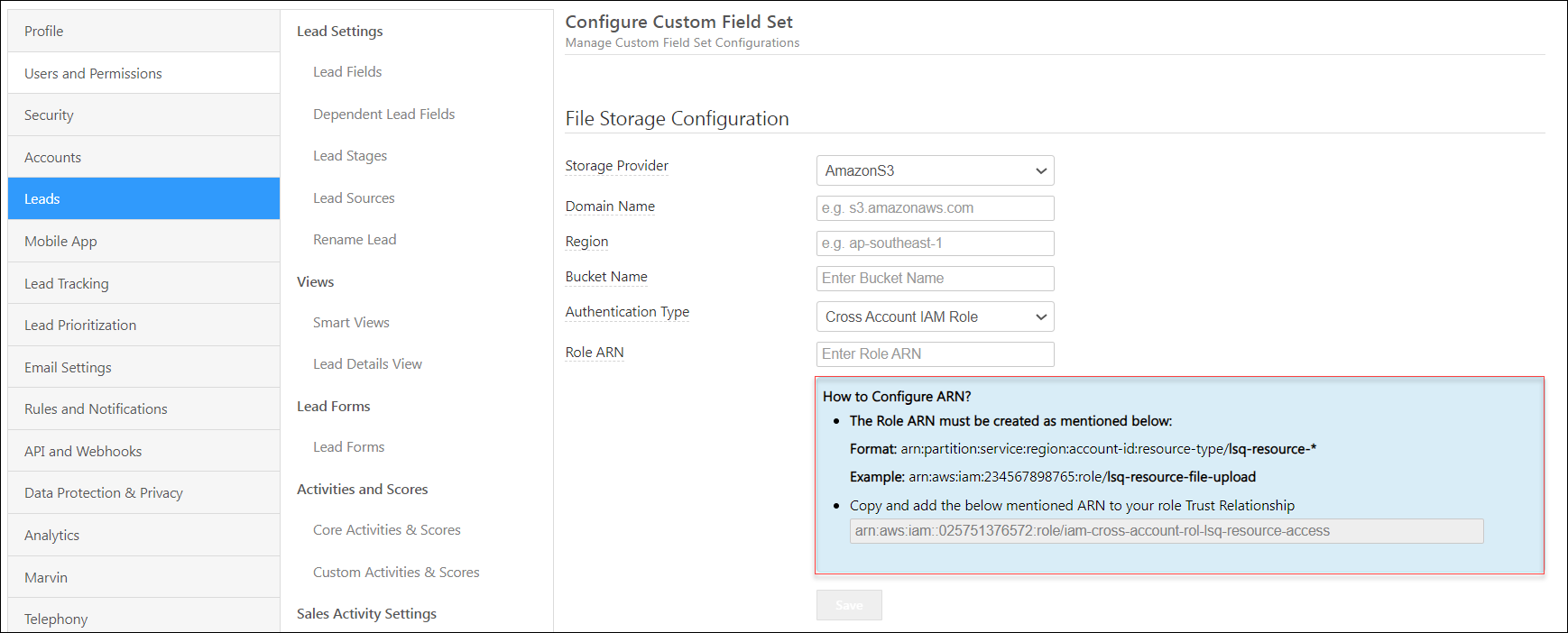
Enter the Amazon Resource Names (ARNs) identified with your S3 bucket –
- The Role ARN must be created as follows –
- Format: arn:partition:service:region:account-id:resource-type/lsq-resource-*
- Example: arn:aws:iam:234567898765:role/lsq-resource-file-upload
- Copy and add the ARN mentioned on the UI to your role Trust Relationship.