Creating Canned Responses
Canned responses allow you to save frequently used messages for quick access. To create a new canned response:
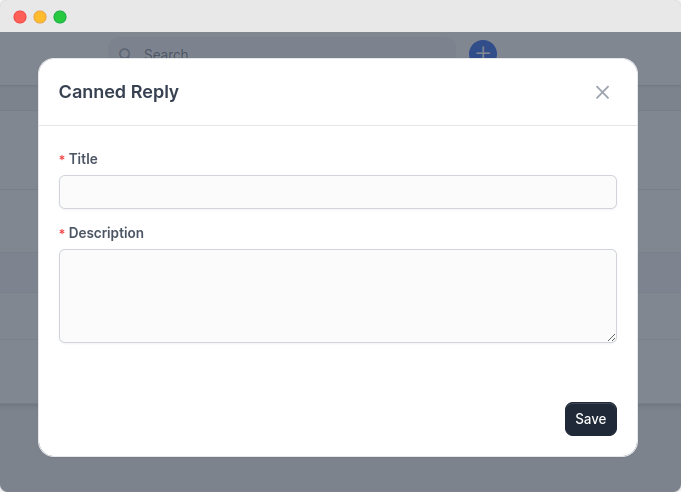
- Navigate to Canned Responses: Access the Canned Responses section from the main menu.
- Add New Response:
- Click the Create canned reply button.
- A form will appear for you to fill out.
- Fill in the Details:
- Title: Enter a concise title for your response (e.g., "Appreciation Reply").
- Description: Type out the full message you want to save (e.g., "Thank you for your response.").
- Set Visibility: Optionally, toggle the switch to make the response Public, making it available for other users.
- Save Changes: Click the Save button to store your new canned response.
Managing Canned Responses
Once you’ve created your canned responses, managing them is straightforward:
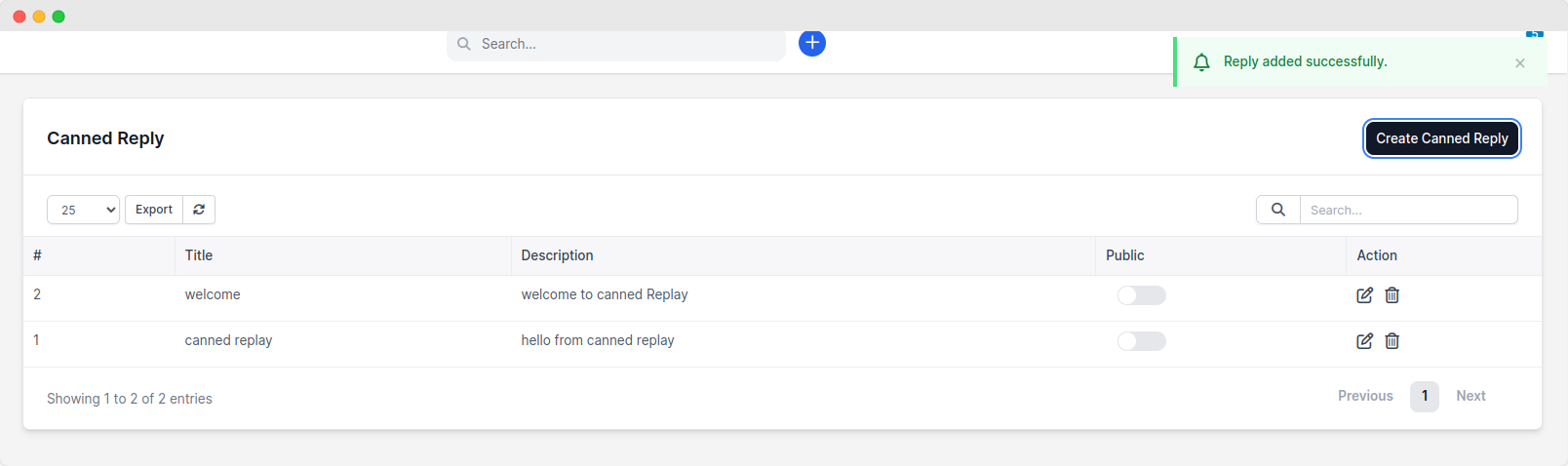
- Viewing Responses: All your saved responses will be displayed in a structured table format.
- Editing and Deleting: The Action column provides options to edit or delete any response as needed.
- Search Functionality: Use the search bar to find specific canned responses quickly by title or keyword.