Overview
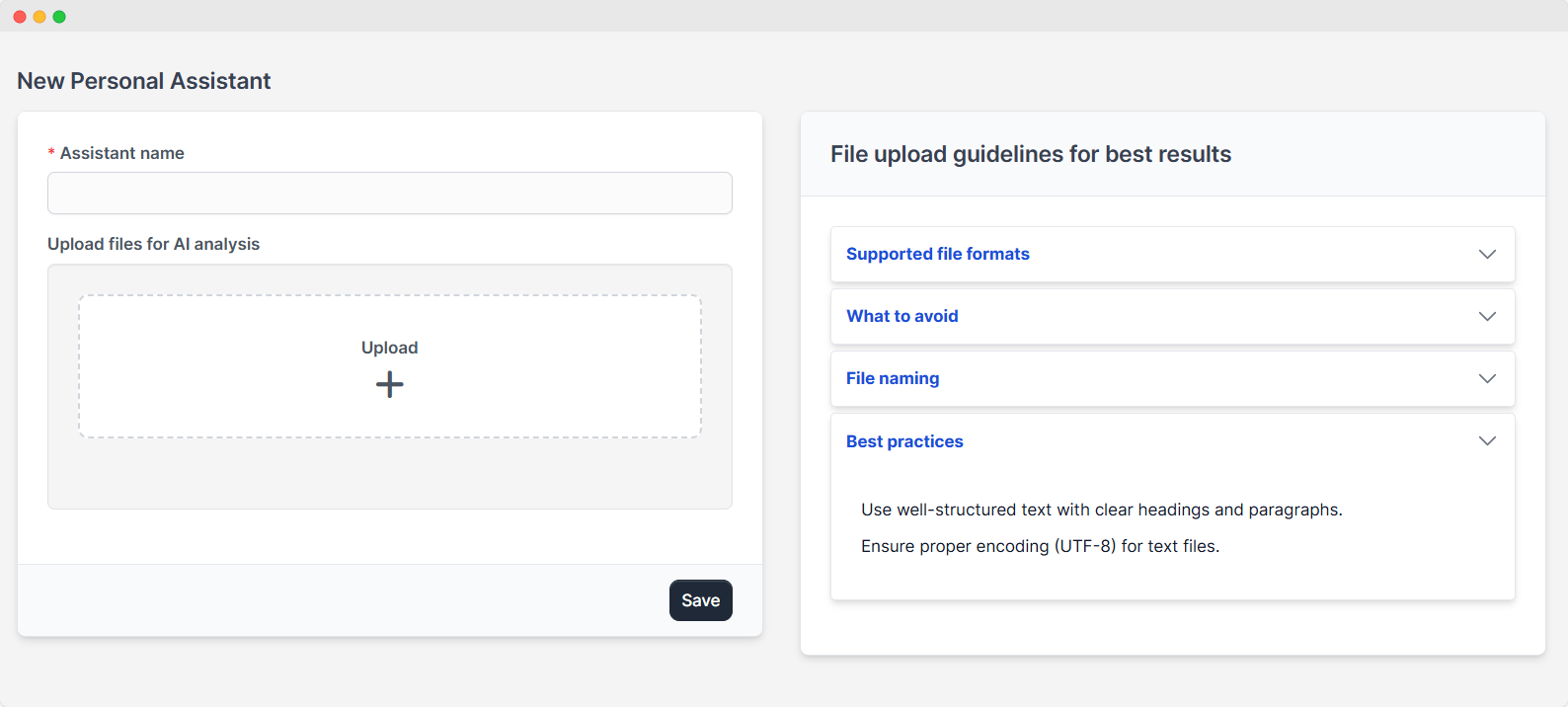
The New Personal Assistant setup interface allows you to create a customized AI-powered assistant by uploading files for analysis. This guide will walk you through the process of setting up your personal assistant.
Interface Components
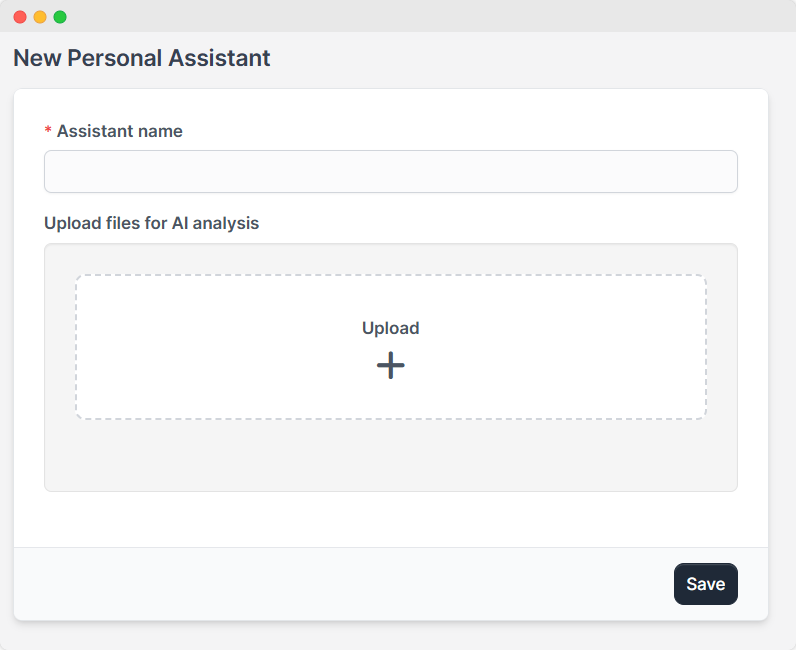
Left Panel
- Assistant Name: Input the name for your personal assistant in this text field.
- Upload Files for AI Analysis: This area is used to upload files for analysis.
Right Panel
-
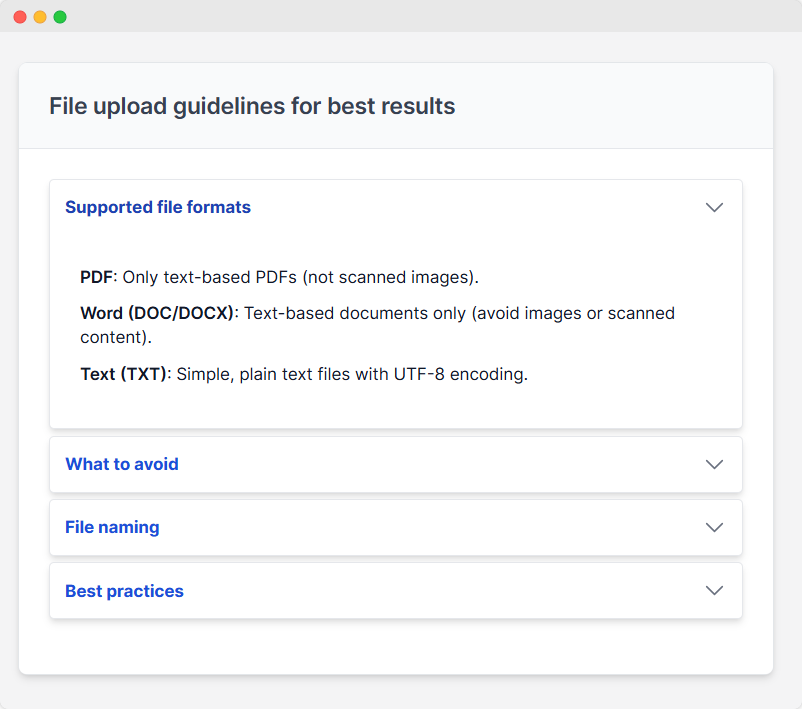
File Upload Guidelines
: This section provides essential information for successful file uploads, including:
-
Supported File Formats: A list of acceptable file types.
-
What to Avoid: Ensure documents are text-based (not image-based) and use OCR for scanned PDFs. Avoid junk characters and keep file sizes reasonable for optimal performance.
-
File Naming: Use only alphanumeric characters and underscores in filenames (e.g., document_name.pdf)
-
Best Practices: Structure text with clear headings and paragraphs, and ensure files are encoded in UTF-8.
-
Tips for Uploading Files
- Verify that your file type is supported by checking the Supported File Formats section.
- Follow the File Naming conventions to avoid issues.
- Use clear headings and paragraphs in your documents for better analysis.
- Ensure that text files are encoded in UTF-8 to prevent encoding problems.
Step-by-Step Setup Guide
- Enter Assistant Name: Input a name for your personal assistant in the provided text field.
- Prepare Files: Follow the File Upload Guidelines to prepare your files for upload.
- Upload Files: Click the Upload area to select and upload your files.
- Save Setup: Once everything is set, hit Save to finalize the setup.
Example Use Case
To set up a personal assistant for customer support, you can upload files containing:
- Product information
- FAQs
- Customer interaction scripts
By following the guidelines and best practices outlined in this documentation, you can effectively use AI analysis to create a personalized assistant that meets your specific needs.
Troubleshooting
If you encounter any issues during the setup process, refer to the File Upload Guidelines section for troubleshooting tips.